Introduction
Choosing a hardware wallet is about more than just finding a safe spot for your Bitcoin. The device needs to be easy to handle, and most importantly, simple to read when you're double-checking a transaction.
The OneKey Pro 2 is the newest addition to OneKey's hardware wallet family. It brings together a touchscreen, fingerprint scanner, wireless charging, and an optional air-gapped mode that lets you sign transactions using QR codes instead of plugging it in.
At ASICMINING360, we wanted to look past the spec sheet and see what this device is actually like to use in real life. In this first part of our review, we’ll walk through the unboxing, build quality, main features, how to set it up, and your backup options. We’ll also cover how it connects to the OneKey app and what you need to know before moving your crypto onto it.
1. What Is the OneKey Pro 2 Hardware Wallet & SafeOS 2 Overview
OneKey is a Hong Kong-based company that launched in 2019. Their first hardware wallets hit the market around 2020. While they are a younger brand compared to Ledger and Trezor, they’ve been building crypto security tools for a few years now.
The company is best known for its open-source software and making wallets that fit different budgets and experience levels. The original OneKey Pro already had a touchscreen and fingerprint unlock. The Pro 2 takes that foundation and slims down the design, updates the operating system, and smooths out the overall feel.
The real question is: do these upgrades actually make the wallet easier to use, or do they just add unnecessary complication?
2. OneKey Pro 2 Unboxing: Encrypted Seed Card & Magnetic Case
Right away, we noticed that OneKey gives you more than just the device and a cable. Here is what you will find inside the box:
- OneKey Pro 2: The wallet itself, used to manage and sign your crypto transactions.
- Quick-start documentation: Basic instructions to get you going.
- Three recovery sheets: Blank cards for writing down your recovery phrase.
- OneKey Seed Card: An extra, encrypted backup option.
- Magnetic shell case: A protective cover for when you’re carrying the device around.
- USB-C cable: For charging and direct wired connections.
The Seed Card is pretty unique. It isn't just a piece of paper; it holds an encrypted backup of your wallet that you unlock with the card's own PIN. But don't throw away those paper recovery sheets—writing down your recovery phrase and hiding it safely is still incredibly important. The magnetic case is also a nice touch if you plan to carry the wallet in your bag rather than leaving it locked in a drawer.
3. Build Quality Specs: Gorilla Glass Touchscreen & Air-Gapped Camera
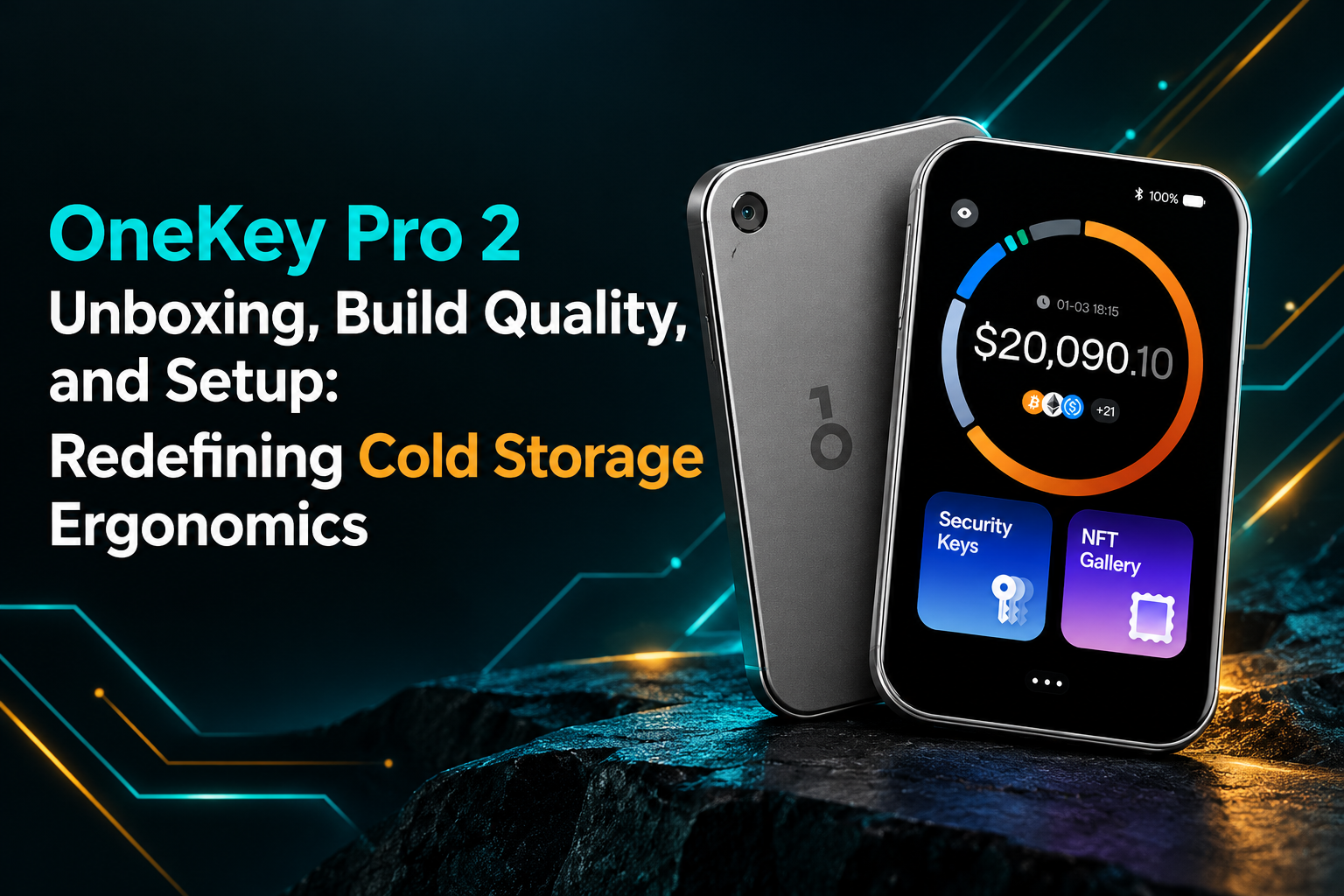
The OneKey Pro 2 feels more like a small smartphone than a traditional hardware wallet.
It’s impressively thin, coming in at about 6.2 mm. The aluminum frame gives it a solid weight, and the frosted glass back paired with a Gorilla Glass 5 front makes it look like a high-end device. The rounded edges make it very comfortable to hold. Unlike some of the tiny hardware wallets out there, the Pro 2 has a screen big enough to read transaction details without squinting.
You'll also notice a camera on the back. This is what allows the device to scan QR codes when you use it in air-gapped mode.
Main Hardware Specifications:
- Thickness: ~6.2 mm
- Display: Full-color touchscreen
- Brightness: Up to 800 nits
- Front protection: Gorilla Glass 5
- Frame: Aluminum
- Rear design: Frosted glass with a built-in camera
- Battery: 700 mAh lithium-polymer
- Charging: USB-C and wireless charging
- Biometric security: Fingerprint sensor built into the power button
- Durability: IP56 water and dust resistance
- Connectivity: USB-C, Bluetooth, and NFC (data connections are turned off in air-gapped mode)
- Operating system: SafeOS 2
It definitely feels premium. However, it is worth remembering that a nice design doesn't automatically mean better security. The software quality, how you handle your backups, and your own security habits are still what keep your money safe.
4. Biometric Security: Setting Up the Fingerprint Scanner on OneKey
The power button on the side also works as a fingerprint reader.
Once you set it up, you can unlock the wallet without having to type your PIN every single time, though the PIN is always there as a backup. When you are registering your fingerprint, try to rest your finger lightly on the sensor rather than pressing down hard—it reads much better that way.
It is a really handy feature if you open your wallet often. Just keep in mind that a fingerprint reader is about convenience, not a replacement for a strong PIN and a safe recovery phrase. One minor detail: the wallet takes about seven seconds to boot up. It’s not a huge deal, but you'll notice it if you are used to a phone that wakes up instantly.
5. 700 mAh Battery Life & Wireless Charging Performance
The Pro 2 packs a 700 mAh battery and supports wireless charging. That battery is tiny compared to a phone, but this device does a lot less.
During our hands-on testing, the battery seemed to drain a bit fast while the screen was on. We'd need to run a longer test to really judge its standby time and how well the battery holds up over the years. For most people, the main concerns are whether it holds a charge while sitting in storage, if it charges reliably, and if it will still work three years from now.
The screen is easily one of the best parts of this wallet. It’s big enough to make menus clear and addresses easy to read. It feels responsive, too. Being able to clearly read where you are sending your money gives you a much better chance of catching a mistake or a scam before you hit approve.
6. Step-by-Step Guide: How to Setup the OneKey Pro 2 Wallet
Getting started is pretty easy, and the wallet handles the creation process entirely on the device. For this walkthrough, we paired it with a mobile phone using the OneKey app.
-
Step 1: Turn it on. Press the power button, pick your language, and choose whether you're connecting to a phone or a computer.
-
Step 2: Get the official app. OneKey shows a QR code on the screen that takes you straight to their real download page. Stick to this. Searching the app store randomly is dangerous because fake wallet apps are common and can steal your crypto. Always double-check that you are on the legit website before downloading anything.
-
Step 3: Create a PIN. Pick a PIN for the wallet. If you want to use the fingerprint unlock, you’ll set that up here too. Keep your PIN private and don’t use obvious numbers like your birth year.
-
Step 4: Create a new wallet. The device will walk you through this. In our test, it gave us a standard 12-word recovery phrase. Write down every word in the exact order and make sure your handwriting is clear. The device will then test you to make sure you wrote it down right.
-
Step 5: Hide your recovery phrase. This is the most important step. Anyone who finds these words can take your crypto, even if they don't have the wallet itself. Never take a picture of it, never save it in Google Drive or iCloud, and never text it to anyone. Hide the paper somewhere safe from thieves, fire, and water.
-
Step 6: Finish up. Once the words are checked, the device is ready. Next, you just connect it to the OneKey app so you can actually see your balances and manage your money.
7. Paper Backup vs. OneKey Encrypted Seed Card Recovery
The Seed Card is one of the more interesting extras included in the box.
It gives you another way to recover your wallet by holding an encrypted backup of your recovery data. During setup, you just tap the card against the back of the device, enter your wallet PIN, and then create a totally separate PIN just for the card.
Paper backup vs. Seed Card:
- Paper recovery sheet: Stores your phrase in writing. It's simple but can be ruined by water or fire. Doesn't have a PIN.
- OneKey Seed Card: Stores an encrypted backup. It's a hard plastic card that is more durable than paper and requires a PIN to work.
While the Seed Card is convenient, it is just one more physical item you have to hide. Also, make sure you actually understand how the recovery process works before you rely on it. A backup is useless if you don't know how to use it when your wallet breaks or goes missing. Don't assume the card is perfectly safe just because it has a PIN—hide it just as carefully as your paper backup.
8. Connecting the Wallet: Bluetooth, USB, or QR Codes
The Pro 2 gives you a few different ways to connect, which is great for flexibility.
The easiest way is via Bluetooth or a USB-C cable, which works perfectly with the app on your phone or computer. But it also supports QR codes. To set this up, go to the connection settings on the wallet, pick the QR option, and it will show a pairing code. Scan that code with your OneKey phone app, and you're linked.
What does air-gapped mode actually mean?
This mode is for people who want to keep Bluetooth, USB, and NFC completely turned off. When you enable it, the wallet cuts off those data connections. Instead, it shows QR codes on its screen for transaction details, and your phone scans them to get things done.
It’s a way to use the wallet without it ever being directly wired or wirelessly hooked to a phone or computer. But remember, air-gapped doesn't mean bulletproof. You still have to double-check addresses on the screen, use genuine software, and keep your backup phrase hidden. Also, the wallet doesn't come strictly air-gapped out of the box—you have to turn those settings on yourself.
9. First Impressions: Is the Setup Difficult?
Here at ASICMINING360, our take is that the OneKey Pro 2 makes a fairly stressful process feel manageable.
The large screen is a massive help, the fingerprint sensor saves time, and the Seed Card is a cool extra backup option. The QR connection method is also great for people who want to avoid direct data links.
There are a few minor quirks. It takes a few seconds to turn on, the fingerprint reader needs a gentle touch, and you really need to understand how the backup card works before trusting it. None of these are dealbreakers, but they do show that you have to look past the premium design when judging a crypto wallet.
Part 1 Verdict: Is the OneKey Pro 2 Design Worth the Upgrade?
The OneKey Pro 2 makes a very strong first impression. It’s incredibly thin, has a great touchscreen, and packs in nice features like wireless charging and fingerprint unlock. Getting it set up is straightforward, and the extra Seed Card and air-gapped QR options give you a lot of ways to manage your security.
But looking good isn't everything. What really matters is how well it protects your private keys and keeps you from making a mistake when moving your funds. In the second part of this review, we’ll dive into the OneKey app, test how signing transactions actually works, look at the security tools, and see how the Pro 2 stacks up against the competition.
Continue reading: OneKey Pro 2 Review: App, Security Features, Transactions and Comparison.
This review was prepared by the ASICMINING360 team. Features and specifications may change with firmware updates, so always check the manufacturer's official website before purchasing.